> ## Documentation Index
> Fetch the complete documentation index at: https://developer.elliephant.com/llms.txt
> Use this file to discover all available pages before exploring further.
# API Credentials
> You can have 2 sets of credentials, one for the sandbox and one for production
## Make sure you save your API Password!
Your API password is a secure key that we use to Authenticate you. When you request your credentials you will only be shown the password **ONCE** so make sure you keep all the details in a secure place. You can reset your API password but your old password will be deleted and no longer usable. You will then need to make sure you update the password in all locations that you are using it in.
## Sandbox Credentials
To get your sandbox credentials you will first need to send an API request to [developer@elliephant.com](mailto:developer@elliephant.com).
Once we receive your request we will set you up with logins to our sandbox site - sandbox.elliephant.com.
From here you will need to follow the following instructions to get your API credentials:
1. Login to the Elliephant demo site at [https://sandbox.elliephant.com](https://sandbox.elliephant.com) using the username and password provided
2. In the top right corner, click on your name with the arrow
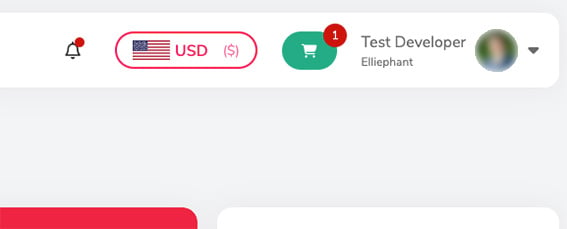 3. In the dropdown select "API Connection"
4. If you have not yet enabled it, click on "Activate API Credentials"
5. Once enabled you will be able to see your "Client ID", "API Key" and "API Password". Make sure to save all these details in a safe place.
6. You should also set the credit limit that you would like to be notified at when you are low.
***Please note:** These credentials are only going to work in the API endpoint for the staging site*
The API endpoint for the staging site is [https://api-sandbox.elliephant.com](https://api-sandbox.elliephant.com)
## Production Credentials
To get your live production credentials you will first need to have registered for the live site.
This would have been done durring the site demo and inital platform discussion.
If you have not been provided access please email us at [developer@elliephant.com](mailto:developer@elliephant.com).
From here you will need to follow the following instructions to get your API credentials:
1. Login to the Elliephant demo site at [https://members.elliephant.com](https://members.elliephant.com) using the username and password provided
2. In the top right corner, click on your name with the arrow
3. In the dropdown select "API Connection"
4. If you have not yet enabled it, click on "Activate API Credentials"
5. Once enabled you will be able to see your "Client ID", "API Key" and "API Password". Make sure to save all these details in a safe place.
6. You should also set the credit limit that you would like to be notified at when you are low.
***Please note:** These credentials are only going to work in the API endpoint for the production site*
The API endpoint for the production site is [https://api.elliephant.com](https://api.elliephant.com)
## Resetting your API Password
As you go on using the API you may need to reset your API Password, please be advised that when you do this you will only be able to see the password once so make sure you save it.
Additionally, when you reset your password the old password will no longer be able to be used. So make sure you change the password in all locations.
To reset the password, you will need to follow the following instructions:
1. Login to the Elliephant demo site at [https://members.elliephant.com](https://members.elliephant.com) using the username and password provided
2. In the top right corner, click on your name with the arrow
3. In the dropdown select "API Connection"
4. In the "API Details" section you will have an option to "Reset API Password"
3. In the dropdown select "API Connection"
4. If you have not yet enabled it, click on "Activate API Credentials"
5. Once enabled you will be able to see your "Client ID", "API Key" and "API Password". Make sure to save all these details in a safe place.
6. You should also set the credit limit that you would like to be notified at when you are low.
***Please note:** These credentials are only going to work in the API endpoint for the staging site*
The API endpoint for the staging site is [https://api-sandbox.elliephant.com](https://api-sandbox.elliephant.com)
## Production Credentials
To get your live production credentials you will first need to have registered for the live site.
This would have been done durring the site demo and inital platform discussion.
If you have not been provided access please email us at [developer@elliephant.com](mailto:developer@elliephant.com).
From here you will need to follow the following instructions to get your API credentials:
1. Login to the Elliephant demo site at [https://members.elliephant.com](https://members.elliephant.com) using the username and password provided
2. In the top right corner, click on your name with the arrow
3. In the dropdown select "API Connection"
4. If you have not yet enabled it, click on "Activate API Credentials"
5. Once enabled you will be able to see your "Client ID", "API Key" and "API Password". Make sure to save all these details in a safe place.
6. You should also set the credit limit that you would like to be notified at when you are low.
***Please note:** These credentials are only going to work in the API endpoint for the production site*
The API endpoint for the production site is [https://api.elliephant.com](https://api.elliephant.com)
## Resetting your API Password
As you go on using the API you may need to reset your API Password, please be advised that when you do this you will only be able to see the password once so make sure you save it.
Additionally, when you reset your password the old password will no longer be able to be used. So make sure you change the password in all locations.
To reset the password, you will need to follow the following instructions:
1. Login to the Elliephant demo site at [https://members.elliephant.com](https://members.elliephant.com) using the username and password provided
2. In the top right corner, click on your name with the arrow
3. In the dropdown select "API Connection"
4. In the "API Details" section you will have an option to "Reset API Password"
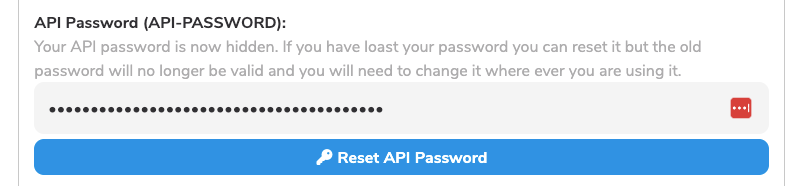 5. Your page will then reload and you will be able to see the new password.